How to Automate Expense Tracking from Your Email
The receipt problem is universal. You buy something for work. The receipt arrives in your email or gets stuffed in a drawer. You tell yourself you'll log it later. You don't. Three months later, your accountant asks for Q1 expenses and you're digging through Gmail search results and crumpled paper trying to reconstruct what happened.
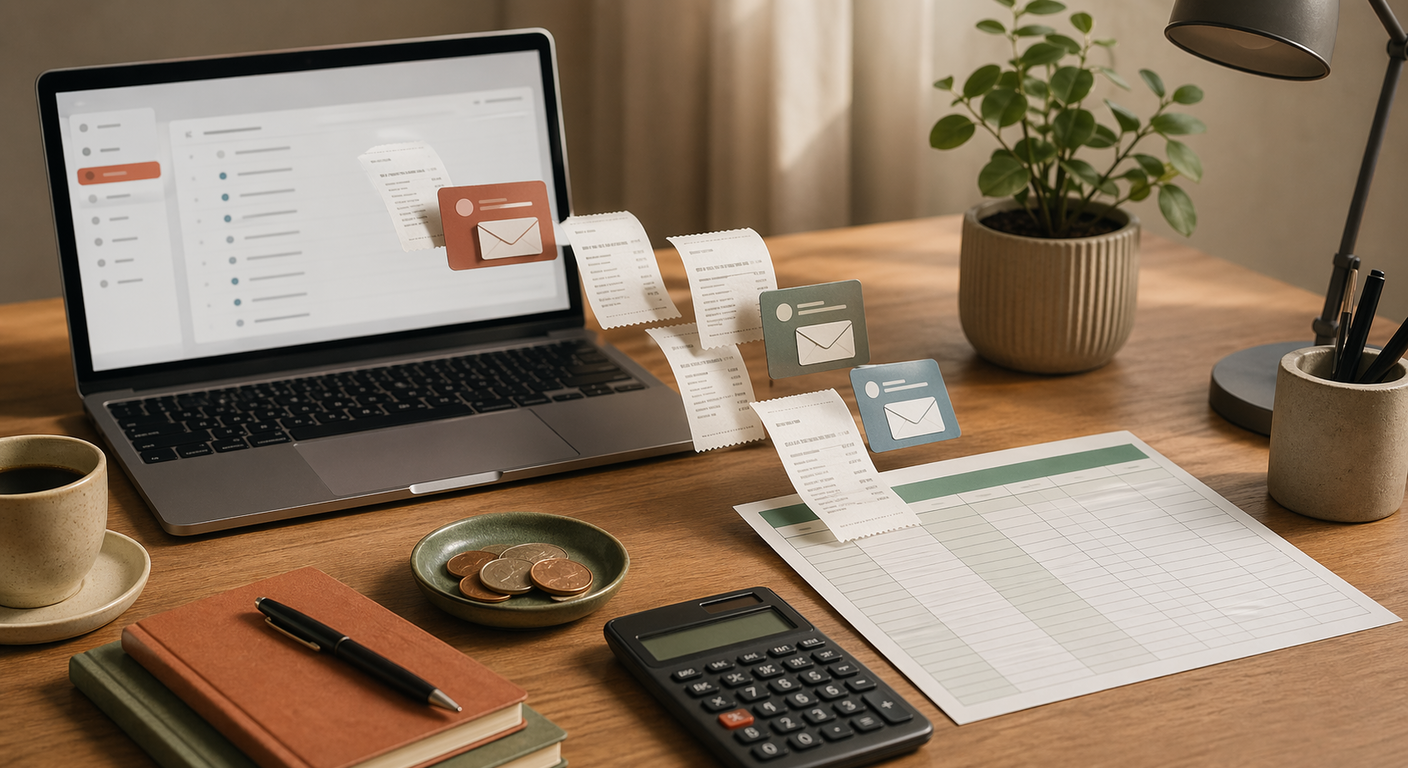
You can fix this with a simple daily automation: scan email for receipts, extract the data, append it to a spreadsheet. No manual entry, no lost receipts, no quarterly panic.
What the Automation Does
Every morning, a scheduled job:
- Searches your email for receipt-like messages from the last 24 hours
- Extracts four fields: vendor, date, amount, category
- Appends a row to a Google Sheet (or any spreadsheet with API access)
- Sends you a short summary: total spent, largest transaction, count by category
That's it. You glance at the summary, confirm nothing weird happened, and move on. The spreadsheet builds itself over time.
What the Output Looks Like
The daily summary message:
EXPENSE REPORT - MARCH 21

Total spent: $127.84
Largest: $89.00 (AWS, server hosting)

By category:
- Software: $89.00
- Office: $23.50
- Meals: $15.34

4 receipts added to your spreadsheet.
And the spreadsheet accumulates rows automatically:
| Date | Vendor | Amount | Category | Source Email |
|---|---|---|---|---|
| 2026-03-21 | AWS | $89.00 | Software | aws-billing@amazon.com |
| 2026-03-21 | Staples | $23.50 | Office | order@staples.com |
| 2026-03-21 | Starbucks | $15.34 | Meals | receipts@starbucks.com |
| 2026-03-20 | WeWork | $150.00 | Workspace | billing@wework.com |
Clean, searchable, exportable. Your accountant will thank you.
How to Find Receipts Automatically
The tricky part is identifying which emails contain receipts. Three approaches, in order of reliability:
Pattern matching on sender. Most recurring expenses come from known senders: AWS, Stripe, Amazon, your coworking space. Build a list of known receipt senders and match against it first.
Subject line keywords. Search for "receipt", "invoice", "order confirmation", "payment received", "your purchase". This catches most transactional emails.
Attachment detection. Many vendors attach PDF receipts. Emails with PDF attachments from commercial senders are likely receipts.
Combine all three for the best coverage. You'll catch 90%+ of receipts on day one, and you can add new senders to the pattern list as they appear.
Extracting the Data
For each receipt email, the LLM extracts:
| Field | How it's found |
|---|---|
| Vendor | Sender name, subject line, or email body |
| Date | Email date, or the date printed on the receipt |
| Amount | Currency patterns ($XX.XX, EUR XX, etc.) in body or attachment |
| Category | Inferred from vendor name (AWS = Software, Uber = Travel, Starbucks = Meals) |
Category inference isn't perfect out of the box. You'll want to review and correct categories for the first week or two. After that, the automation learns your patterns: if you always categorize WeWork as "Workspace" instead of "Office," it picks that up.
The Prompt
Once a day at 7:15 AM, find all receipts in my email from the last 24 hours.
- Extract vendor, date, amount, and category for each receipt.
- Append them as rows to my "Expenses" Google Sheet.
- Send me a short summary: total spent, largest transaction, and count by category.
Why This Matters More Than It Seems
The obvious benefit is time saved on data entry. But the real wins are less visible:
You never lose a receipt. Every purchase with an email receipt is captured automatically, the same day. No more "I know I bought that but I can't find the receipt."
Real-time visibility. You know what you spent this month right now, not at the end of the quarter when your accountant tells you.
Clean data for tax prep. Consistent formatting, accurate categories, complete records. Tax preparation goes from a multi-day ordeal to exporting a spreadsheet.
Catching forgotten subscriptions. When every charge is logged automatically, subscriptions you forgot about become visible. That $29/month tool you stopped using six months ago shows up in the spreadsheet every month until you cancel it.
Extensions Worth Adding
Multi-currency handling. If you travel or pay for international services, auto-convert to your base currency using the exchange rate on the transaction date.
Budget alerts. Get notified when monthly spending in any category crosses a threshold you set.
Receipt image storage. For physical receipts, take a photo and send it to a dedicated email address. The automation OCRs the image, extracts the same four fields, and logs it alongside the email receipts.
Duplicate detection. Some vendors send both a charge confirmation and a receipt. Add a check for duplicate amounts from the same vendor on the same day.
Getting Started
- Set up email API access (Gmail API is the most common).
- Create a Google Sheet with columns: Date, Vendor, Amount, Category, Source.
- Build your initial sender list (check your email for the last month's receipts to seed it).
- Use the prompt template above, scheduled for early morning.
- Review the output daily for the first two weeks. Correct any miscategorized items or missed receipts.
After the calibration period, this runs itself. You'll spend about 30 seconds a day glancing at the summary. Your spreadsheet stays current. Tax season stops being stressful.