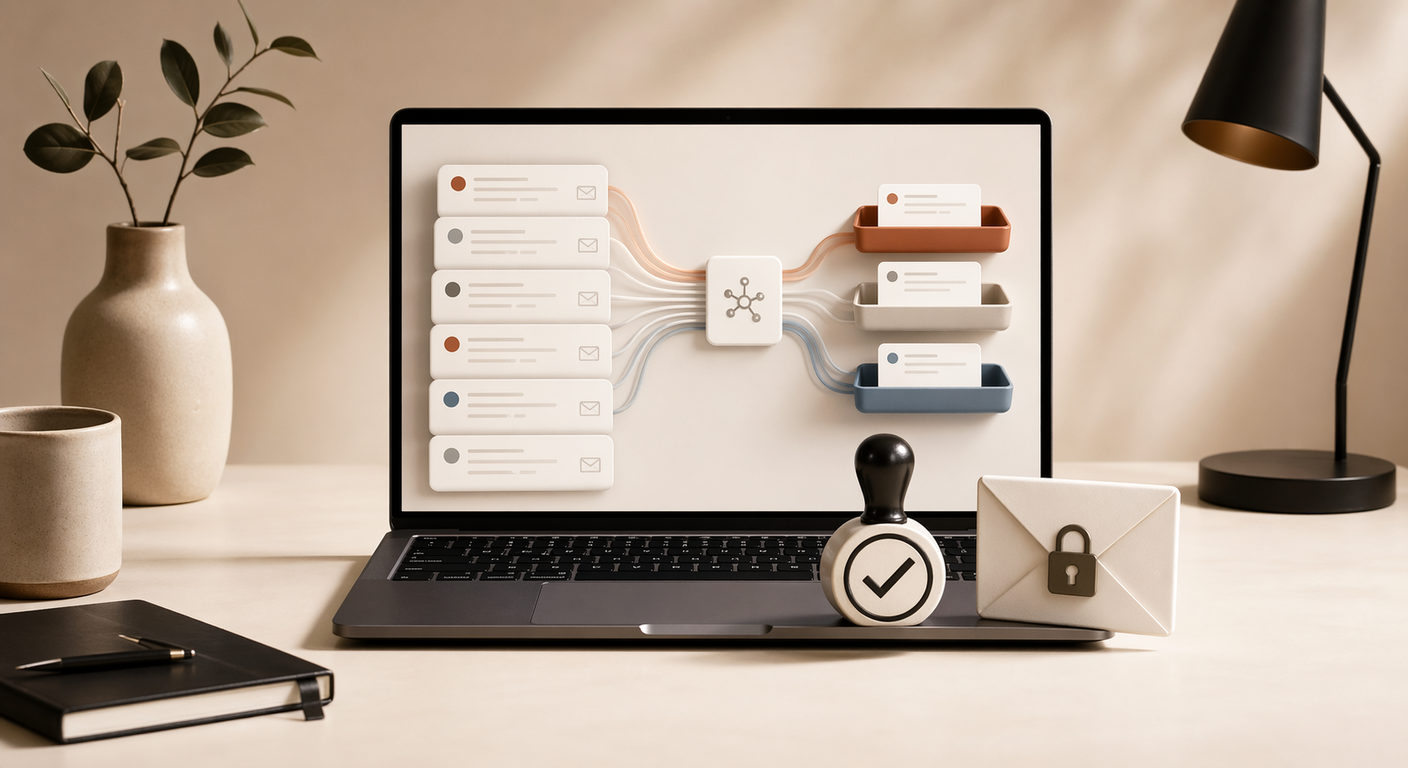
How to Build an Email Triage Automation (That Never Sends Without Permission)
Email is where productive mornings go to die. You sit down to do real work, but first you need to "clear your inbox." You open Gmail, start scanning, reply to something urgent, delete some newsletters, get pulled into a thread that wasn't urgent at all. Thirty minutes later, your deep work window is gone.
An email triage automation handles the scanning, sorting, and drafting before you wake up. You review a summary, approve what makes sense, and move on. But there's one rule that makes it work: the automation never sends anything on its own.
Here's how to set it up.
The Core Idea: Draft-Only Mode
Full email automation sounds appealing. An AI that reads and replies to your email automatically. In practice, it's a terrible idea:
- Wrong tone damages relationships
- Missing context leads to embarrassing responses
- One bad auto-reply to a client or investor can cost you real money
Draft-only mode keeps the speed without the risk. The automation does the heavy lifting (reading, categorizing, writing), but you make the final call on what actually sends. This is a hard constraint, not a preference.
How It Works
The automation runs on a daily schedule (early morning works best). Five steps:
Step 1: Scan
Connect to your email via API and pull all messages from the last 24 hours.
Step 2: Categorize
Each email gets sorted into one of three buckets:
- Urgent: needs action today. Payments, deadlines, client issues, security alerts.
- FYI: worth knowing about, but no response needed. Status updates, newsletters you actually read, team announcements.
- Promotions: marketing emails, newsletters you never open, anything with "unsubscribe" in the footer.
Step 3: Auto-Unsubscribe
For promotional emails that meet all three criteria:
- Categorized as "Promotions" 3+ times
- You've never replied to the sender
- Haven't been opened in 30+ days
The automation clicks unsubscribe. No questions asked. This is the one place where automatic action is safe, because the downside of unsubscribing from junk mail is zero.
Step 4: Draft Replies
For every "Urgent" email, the automation:
- Reads the full thread for context
- Writes a reply in your tone and voice
- Saves it as a draft in your email client
- Does not send it
You review the draft later. Approve, edit, or delete.
Step 5: Send a Summary
A short message arrives on your phone:
INBOX TRIAGE - THIS MORNING

- 2 urgent (2 drafts ready)
- 8 FYI
- 12 promotions (auto-unsubscribed from 2)

Drafts to review:
- Insurance follow-up: waiting for your approval
- Client scheduling: ready to send
That's what you see over coffee. Two minutes to review, then you're done with email for the morning.
The Prompt
Every morning at 7:05 AM, scan my email for the last 24 hours.
- Group messages into: "urgent action needed", "FYI", and "promotions".
- For each urgent message, draft a reply in my tone, but DO NOT SEND.
- Unsubscribe from any newsletters I never reply to or open.
- Post a summary to chat with: count by category, links to drafts for urgent messages. Treat this as draft-only. I must explicitly approve any email before it is sent.
Why Drafts Are the Key
The value of email triage isn't in automating replies. It's in eliminating the sorting step.
Without automation, you spend most of your email time on triage: opening each message, deciding if it's urgent, deciding if it needs a reply, mentally filing it. The actual reply writing is maybe 30% of the time. The rest is decision fatigue.
With automation, you skip straight to reviewing pre-written drafts for the 2-3 emails that actually need your attention. Everything else is already sorted.
| Task | Without automation | With automation |
|---|---|---|
| Opening email client | 1 min | 0 |
| Scanning all messages | 10 min | 0 |
| Identifying urgent items | 5 min | 0 |
| Deleting newsletters | 3 min | 0 |
| Drafting routine replies | 10 min | 0 |
| Total | ~29 min | ~3 min (reviewing drafts) |
Useful Extensions
Once the basic triage works, consider adding:
VIP list. Flag emails from specific senders (investors, key clients, your accountant) as urgent regardless of content. Some emails matter because of who sent them, not what they say.
Auto-archive. Archive anything older than 30 days that's been read and doesn't need a reply. Keeps the inbox clean without losing anything.
Meeting scheduling. If someone asks to book time, auto-draft a reply with your scheduling link.
Invoice tracking. Flag any email mentioning payments, invoices, or billing and log it to a tracking spreadsheet.
What Can Go Wrong
Tone mismatch. The AI might write replies that are too formal, too casual, or too aggressive for the relationship. Review drafts carefully in the first few weeks and correct the tone. Most LLMs adapt to examples quickly.
Over-categorizing as urgent. If too many emails land in "urgent," the triage loses its value. Tighten the criteria: urgent means "needs action today," not "seems important."
Missing context. The AI only sees the email thread. If you had a phone call or Slack conversation that changes the context, the draft might be wrong. This is exactly why draft-only mode exists.
Unsubscribing from something you wanted. The 3-strike rule (promotional 3+ times, never replied, not opened in 30 days) is conservative. But review the auto-unsubscribe list for the first few weeks to catch false positives.
Getting Started
- Set up API access to your email (Gmail API, Microsoft Graph, or similar).
- Choose where summaries go (Telegram or a dedicated email digest).
- Use the prompt template above, adjusted for your preferences.
- Schedule it to run 30-60 minutes before you wake up.
- Review drafts daily for the first 2 weeks to calibrate tone and urgency thresholds.
The first morning you wake up to a sorted inbox with pre-written drafts, you'll wonder why you ever did this manually.